Phones now run games that would once have needed a console, but they still ask you to play with your thumbs on a sheet of glass that your hands cover half of. Gaming accessories are about fixing that: proper buttons and sticks, triggers for the index fingers, sleeves that stop sweaty thumbs sticking, coolers that stop the phone slowing down when it gets hot, and power so a long session does not end at 5 per cent. This guide explains each kind, what it does well, and what to check so it works with your phone and your games.
Why gaming accessories
A touch screen is very good for some games and awkward for others. Puzzle games, card games and anything you play with one finger feel natural on glass. Fast games are harder. Shooters, racing games, fighting games and anything with a lot of movement ask you to move, aim, jump and fire at once, with nothing under your thumbs to tell you where the buttons are. Your thumbs cover part of the screen, slide off the on-screen sticks, and get tired.
Accessories help in four ways:
- Control. Real buttons and sticks you can feel, so you do not have to look down to find them.
- More fingers. Triggers on the top edge let your index fingers fire or aim while your thumbs move.
- Comfort. A grip that fills your hands is easier to hold for an hour than a thin phone.
- Keeping the phone at its best. Phones slow themselves down when they get hot, and long gaming makes them hot. A cooler and the right charging set-up help the phone keep its speed.
Where to start
Three kinds of player tend to want different things. Someone who plays shooters for an hour after work usually gets the most from triggers and a pair of finger sleeves, which cost little and go in a pocket. Someone who plays racing, sport or adventure games on the sofa or on long journeys usually wants a telescopic controller, so the phone becomes a handheld console. Someone who plays long sessions of demanding games and notices the phone stuttering wants a cooler first, and a better charging set-up second. Many people end up with two of these, but almost nobody needs all of them on day one.
Not every game needs all of this. It helps to work out what bothers you most, whether it is control, comfort, heat or battery, and start there. Everything in this guide is also gathered in one place under for gamers.
Controllers and telescopic controllers
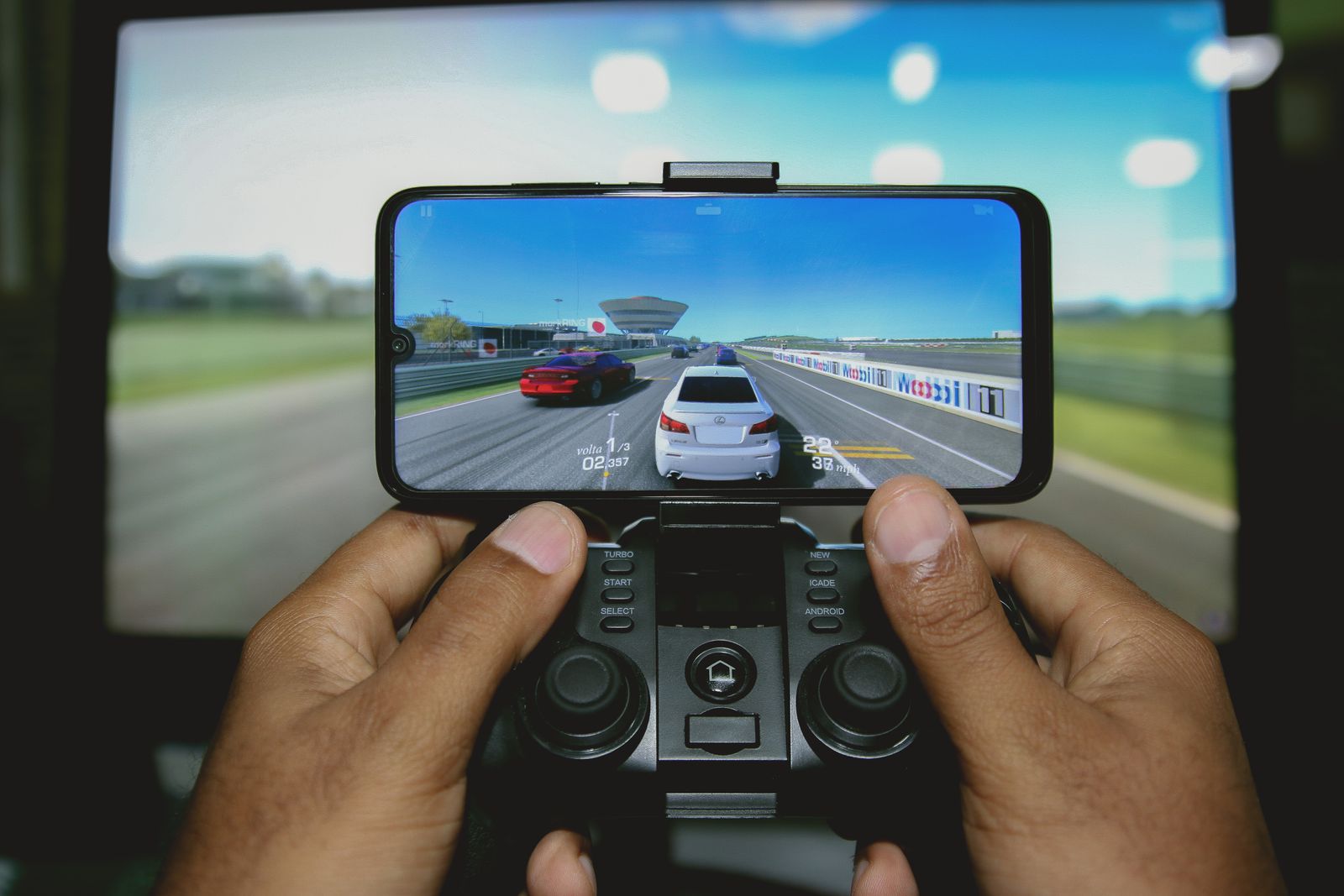
A phone game controller gives you what a console controller has: two sticks, a cross-shaped pad, face buttons and triggers. There are two main shapes.
Controllers the phone sits in
A telescopic controller has a grip at each end, and the middle stretches so the phone slides in between, held across the middle like a handheld console. Once it is in, the whole thing feels like one device. They suit people who play on the move, on the sofa or in bed, because there is nothing to balance. See telescopic controllers.
Check two things before choosing one:
- Will your phone fit? Each telescopic controller stretches to a certain length. Large phones in thick cases may not fit, and some controllers need the case taking off. Measure the phone's length with its case and compare.
- Will the camera bump get in the way? On some designs, the grips press against a large camera bump. Many have a gap or a soft pad to allow for it.
Separate controllers
A separate controller is held in both hands like a console controller, with the phone on a clip on top of it or standing on a table in front of you. They are often more comfortable for long sessions and suit playing with the phone on a stand, or cast to a television. See phone game controllers, and adjustable phone stands to hold the phone at eye level while you play.
Plugged in or Bluetooth
Controllers connect in one of two ways.
- Plugged in. A telescopic controller often has a USB-C or Lightning plug in one grip that goes straight into the phone's port. There is no pairing and no battery to charge in many cases, because the controller takes its power from the phone, and the connection has no delay at all. The plug has to match your phone: USB-C for most recent phones, including iPhone 15 and later, or Lightning for iPhone 14 and earlier.
- Bluetooth. The controller pairs with the phone like a pair of earbuds and has its own battery. It works with phones whatever their port, and can be used with the phone some distance away. Apple's own help pages describe pairing a controller from the phone's Bluetooth settings, and Android phones pair them the same way.
Sticks, buttons and layout
Controllers differ in the feel of their sticks and buttons, and it is worth reading the details. Some use magnetic sensors in the sticks, often described as Hall effect sticks, which are designed to avoid the slow drift that worn sticks can develop, where a character keeps creeping when nobody is touching it. Some have quiet buttons for playing in bed beside someone asleep; others have firm, clicky ones. A layout like a familiar console controller makes it easier to move between the two, and a few controllers add extra buttons on the back that you can set to repeat a front button, so your thumbs never leave the sticks.
Not every game supports a controller
This is the most important thing to know before buying. A controller only works in games that are written to accept one. Many big games do, and many do not. Check the game's own settings or its listing in the app store for controller support. On an iPhone, Apple's help pages explain that you can change which button does what for supported games, in the phone's settings.
Triggers and shoulder buttons
Triggers are a simpler, cheaper answer for one kind of game: shooters, and battle royale games in particular. They are small clips that slide onto the top edge of the phone when you hold it sideways. Each has a button on top that your index finger presses, and underneath, a small pad that touches the screen. When you press the button, the pad taps the screen at that spot.
So a trigger does not talk to the phone at all. It presses the screen for you, in a place your thumb cannot easily reach while it is busy moving. That means:
- they work with any game, because the game only sees a tap;
- they need no battery, no pairing and no plug, in the simplest kind;
- you need to move the game's on-screen fire and aim buttons so they sit under the triggers. Most shooters let you change the button layout in their settings.
Setting triggers up
- Open the game and find its controls or button layout settings.
- Clip the triggers onto the top edge of the phone, roughly where your index fingers rest.
- Drag the game's fire button under the right trigger and the aim or scope button under the left.
- Press each trigger a few times in a practice mode and nudge the buttons or the triggers until every press lands.
- Save the layout, so you only have to do it once.
Some triggers also add extra buttons, or a grip that wraps round the back of the phone. They clip on and off in seconds, so they suit people who game sometimes and want the phone back to normal afterwards. Thick or bumpy cases can stop them gripping, so check whether they suit a phone with a case on. See triggers and shoulder buttons.
Finger sleeves
Gaming finger sleeves are thin, stretchy sleeves that slide over the tip of a thumb or finger. They are knitted from a fine fabric with threads that carry the small electrical charge a touch screen needs, so the screen still feels your touch through them.
They fix two problems that come with long sessions:
- Sweat. Warm thumbs stick to glass. A sleeve glides smoothly, so aiming and swiping feel the same at the end of a game as at the start.
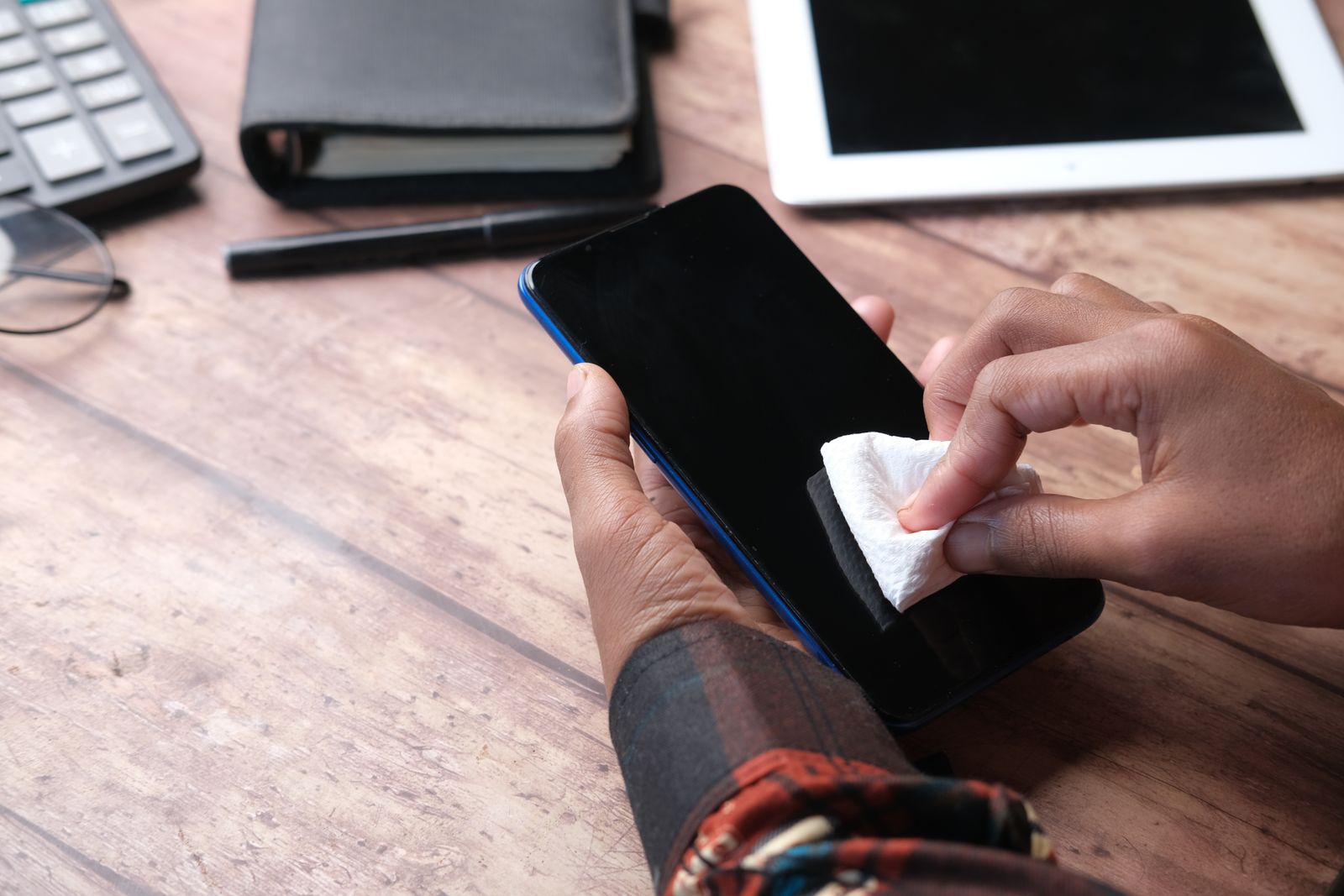
- Smears and heat. The screen stays cleaner, and the sleeve sits between a warm phone and your skin.
They come in packs, usually one size that stretches, and are washable. They suit people who play with their thumbs on the screen and do not want anything clipped to the phone. Pull one on before you start a game and keep it on the thumb that does the most aiming.
Sleeves differ mainly in thickness and in how far they cover the finger. Thin ones feel closest to a bare thumb; slightly thicker ones last longer and absorb more sweat. Wash them by hand in cool water and let them dry flat, because a hot wash can loosen the threads that make them work. When a sleeve starts missing touches, it has worn thin and is time to replace. See gaming finger sleeves.
Phone coolers and why phones slow down when hot
If a game runs smoothly for the first twenty minutes and then starts to stutter, the phone has probably got hot. This is the phone protecting itself, not a fault.
Why it happens
The chip that runs a game turns electricity into heat as it works, and a demanding game keeps it working hard for a long time. A phone has no fan; it can only lose heat through its body. When it gets too warm, it turns itself down. Apple's own help page on hot iPhones says that when one gets too hot, performance is reduced, with lower frame rates in some apps, charging slows or stops (wireless charging too), and the screen may dim. It also says to limit gaming in hot conditions, and that Apple's comfortable range for using an iPhone is between 0 and 35°C around it. Samsung's UK help pages list charging, power-hungry apps and using a case as the most common reasons a phone gets hot, and suggest taking the case off to help it cool.
Three things make it worse:
- Charging while playing. Charging makes heat of its own. Samsung notes that playing games while charging slows the charging down to stop the phone overheating.
- A thick case. It wraps the phone like a jacket.
- A warm room or direct sun. The phone has less room to lose heat into.
How a cooler helps
A phone cooler sits on the back of the phone and takes heat away from it. There are two kinds of cooling inside them.
- Fan coolers blow air across the back of the phone. They are simple and gentle.
- Semiconductor coolers, often called Peltier coolers after the effect they use, have a metal plate that gets cold when powered, with a small fan behind it to carry the heat away. They cool much harder than a fan alone.
Most coolers need power while they run, usually from a USB-C cable to a charger or power bank; some have a small battery. Check how a cooler is powered before you choose, because a cooler with a cable adds another lead to manage while you play.
Magnetic or clip-on
Magnetic phone coolers click onto the back of the phone with a magnet. They need a phone with magnets built in, or a magnetic phone case, or a magnetic ring stuck to the back. They go on and come off in a second and sit flat. Clip-on phone coolers grip the phone with spring arms, so they work on any phone, magnetic or not, and with many cases.
Put the cooler over the part of the phone that gets hottest. On most phones, that is near the top of the back, close to the cameras, where the main chip sits. Feel the back of the phone after a few minutes of gaming and you will usually find it.
Using a cooler with a case
A cooler works best against the phone's own back. A thin case lets most of the heat through, so many coolers still help with one on. A thick, padded or rugged case holds the heat in and keeps the cooler away from it, so for long sessions it is worth taking that kind of case off, which is also what Samsung suggests for a hot phone. A magnetic case is the neat answer for magnetic coolers: it is thin, and it gives the cooler something to hold on to.
Cold plates and damp air
A plate colder than the air around it can gather tiny drops of water in a humid room, in the same way a cold drink does on a summer day. If you see moisture on a semiconductor cooler, wipe it and the phone dry and use a milder setting. Do not use a cooler to chill a phone that is not warm, and never put a phone in a fridge or freezer to cool it; Apple's advice is simply to move a hot phone somewhere cooler, out of direct sun, and let it cool.
Power for long sessions
Games use more battery than almost anything else a phone does: a bright screen, a busy chip, sound and often a data connection all at once. A long session can drain a phone that would last all day otherwise. There are good ways and poor ways to keep it going.
Charge before, not during, where you can
Because charging adds heat and the phone slows charging while it is hot, the gentlest set-up is to charge before a long session and play on battery. When you do need to charge while playing, take the case off, use a cooler, and keep the room cool.
Cables that stay out of the way
Held sideways, a straight cable sticks out of the end of the phone into your palm and bends sharply at the plug, which wears it out. A right-angle cable has an L-shaped end that runs along the phone instead, out of your hand. A cable long enough to reach the sofa from the socket helps too; the guide to charging cables covers lengths and plugs.
Controllers that pass charge through
A plugged-in telescopic controller fills the phone's only port. Some have a charging socket of their own on the grip, which passes power through to the phone so you can play and charge at once. If you play for long stretches, this is worth looking for.
Power banks
For gaming on a train, a coach or anywhere away from a socket, a power bank keeps the phone going. A magnetic power bank on the back of the phone adds weight and heat to the phone itself, so for gaming, one on a short cable in a pocket or on the table is often more comfortable. The guide to power banks explains sizes and how many charges you really get, and the guide to fast charging explains what the watts on a charger mean.
Sound without wires in the way
Many games are better with sound, but a speaker on full volume runs the battery down and annoys anyone near you. Earphones save both. For fast games, wired earphones have no delay at all, while some Bluetooth earbuds lag a little behind the picture. The guide to earphones and earbuds explains the choice, and wired earphones come with USB-C, Lightning or 3.5mm plugs.
Questions people ask
Will a controller work with every game?
No. A controller only works in games that support one. Check the game's settings or its app store listing first. Triggers are different: they press the screen, so they work with any game once you move the on-screen buttons under them.
Will my phone fit a telescopic controller?
Measure your phone's length with its case on and compare it with the controller's stretch. Large phones in thick cases sometimes need the case off. Check the plug matches your phone if it connects by cable.
Why does my game slow down after a while?
The phone has got hot and turned its own speed down to protect itself. Taking the case off, not charging while you play, keeping out of the sun and using a cooler all help.
Is it bad to charge my phone while gaming?
It is not harmful in itself, but it makes more heat, and the phone may slow its charging and its games to stay cool. Charge before you play where you can, and use a cooler if you do charge during a session.
Do magnetic coolers work on any phone?
They need a phone with magnets built in, a magnetic case, or a magnetic ring stuck to the back. Clip-on coolers work on any phone.
Where to go next
Choose by what bothers you most: telescopic controllers for proper buttons and sticks, triggers for shooters, finger sleeves for sweaty thumbs, and magnetic or clip-on coolers for a phone that slows down when hot. Delivery is included in every price and tracked to your door.